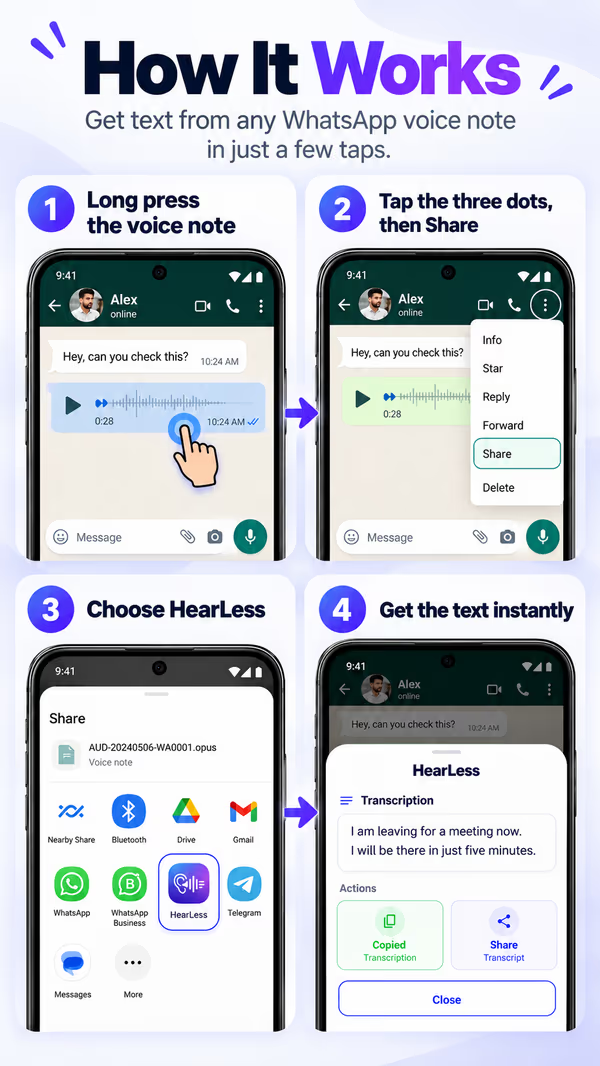
To transcribe a long WhatsApp voice note on Android, long-press the note, tap ⋮ → Share, and send it to an app that has no length cap, such as Hearless. It reads the whole recording, however long, and gives you one transcript you can copy. If the note is in English, Portuguese, Spanish or Russian, WhatsApp’s own built-in transcripts are a free, on-device option too. Both routes are below, along with what to check before you start.
The two ways to read a long voice note
There are really only two practical options on an Android phone:
- WhatsApp’s built-in transcripts. Free, private to your device, and good enough when the language is supported and you only need to read the note.
- A transcription app you share the note to. Better when the note is long and you want the text out of WhatsApp: to copy it, search it later, or read it in a language WhatsApp doesn’t cover.
Neither involves exporting chats, saving files, or uploading anything to a website.
Option 1: WhatsApp’s built-in transcripts
WhatsApp can turn a voice message into text itself. According to WhatsApp’s Help Center, transcripts are generated on your device, and your voice messages stay end-to-end encrypted.
Turn it on (Android):
- Open WhatsApp Settings → Chats.
- Turn on Voice Message Transcripts.
- Tap Choose language and pick the language most of your voice notes are in.
- Tap Set up now (or Wait for Wi-Fi).
Read a note: tap and hold the voice message, then tap ⋮ → Transcribe. Tap the transcript to reveal more of it.
What to know before you rely on it for long notes, all from WhatsApp’s own Help Center pages on transcripts and playing voice messages:
- Four languages on Android: English, Portuguese, Spanish and Russian. Anything else won’t transcribe.
- One transcript language at a time. You choose a single language in Settings, so mixed-language notes are a gamble.
- You can’t copy, edit or delete the transcript. For a long note, that means the text stays inside WhatsApp.
- It’s off by default, and WhatsApp notes that transcripts may be inaccurate.
WhatsApp’s help pages don’t mention a maximum length for transcripts, so we won’t guess at one. If your note is in one of those four languages and you only need to read it once, the built-in feature is free and on-device. Use it.
Option 2: Share the voice note to Hearless
When the note is long, in another language, or you want to keep the text, share it to Hearless instead.
- In WhatsApp, long-press the voice note.
- Tap the ⋮ menu and choose Share. On iPhone, tap Forward, then Share.
- Pick Hearless in the share sheet.
- A sheet opens on top of WhatsApp with progress, then the transcript.
- Tap Copy or Share to send the text wherever you need it.
What happens with a really long note
This is where long notes differ from short ones:
- There’s no fixed length limit. Hearless processes long recordings in five-minute parts behind the scenes, retries a part automatically if it hiccups, and joins everything into one transcript.
- You see the cost before anything uploads. If the note is longer than the minutes left on your account, Hearless says so up front, for example “This note needs 3 min and you have 1”, instead of failing halfway.
- You pay for exact seconds, after success. Minutes are deducted for the seconds actually transcribed, and only once the transcript comes back.
- Long notes take a little longer. Each part is processed in turn, so a 20-minute note won’t come back as fast as a 20-second one.
Before you start: a 30-second checklist
Long notes are where small things go wrong, so check these first:
- You’re online. Transcription happens in the cloud, so it needs an internet connection; there’s no offline mode.
- You’re signed in. Hearless needs a Google sign-in. If you share a note before signing in, it waits for you and continues after login.
- You have enough minutes. New accounts start with 2 free minutes, and longer notes need a one-time minute pack. Packs never expire, and there’s no subscription.
- You’re sharing one note. If someone sent a long message as several voice notes, share them one at a time. Selecting several and sharing them together only transcribes one.
Tips for long voice notes
If you only need one part, WhatsApp itself can help. WhatsApp’s Help Center notes that you can tap 1x to play at 1.5x or 2x, and long-press the dot on the waveform to jump to a point in the message. That’s handy for “what time did she say?” questions.
For everything else, read it. You can skim a ten-minute ramble for the one address or decision that matters, and nobody around you hears a thing.
Mixed languages are fine. Long notes often drift between two languages, sometimes in the same sentence. Hearless transcribes mixed-language notes and has an Auto Detect option, so you don’t have to pick one language up front.
Your language is almost certainly covered. Hearless transcribes 60 languages, including German, French, Italian, Dutch, Polish, Turkish, Arabic and Japanese, none of which WhatsApp’s Android transcripts handle. See the honest, sourced WhatsApp vs Hearless comparison.
Find it again later. Every transcript is saved to a searchable Library in the app, so a long note you read last week is a search away.
Common mistakes with long voice notes
- Exporting the whole chat to get one note. You don’t need to. Sharing a single voice note goes straight to the transcriber.
- Waiting for WhatsApp’s Transcribe button that never appears. If your language isn’t English, Portuguese, Spanish or Russian on Android, the option won’t help. Here’s which languages WhatsApp’s transcription supports.
- Sharing several notes at once. Only one gets transcribed. Share them one by one.
- Assuming the transcript is backed up. Your Hearless history lives on your phone only. It isn’t synced, it doesn’t move to a new phone, and it’s gone if you uninstall. Copy anything important somewhere safe.
Privacy: what happens to a long recording?
Be clear about the trade-off, because it’s real:
- WhatsApp’s built-in transcripts are generated on your device, per WhatsApp’s Help Center. If keeping audio on the phone matters most, that’s the option to use, as long as your language is supported.
- Hearless sends the voice note you choose to share for transcription. Voice notes are processed by OpenAI via our servers. We don’t store them. Hearless only sees the notes you share. It doesn’t read your chats or watch your folders.
For a long, sensitive recording, decide which matters more to you: on-device processing, or the language, length and copy-the-text features.
Not a voice note? Long recordings from your phone
Lectures, interviews and long memos often live as audio files rather than WhatsApp messages. Hearless transcribes those too: MP3, M4A, WAV, OGG/Opus, AAC, FLAC, AMR, WMA, 3GP, WebM and MP4, with the same no-length-cap handling. See transcribing audio files.
If you’re new to all this, start with the complete guide to transcribing WhatsApp voice notes.
Sources: WhatsApp Help Center, “How to turn voice message transcripts on or off” (Android) and “How to play voice messages” (Android). Last checked 2026-10-11.