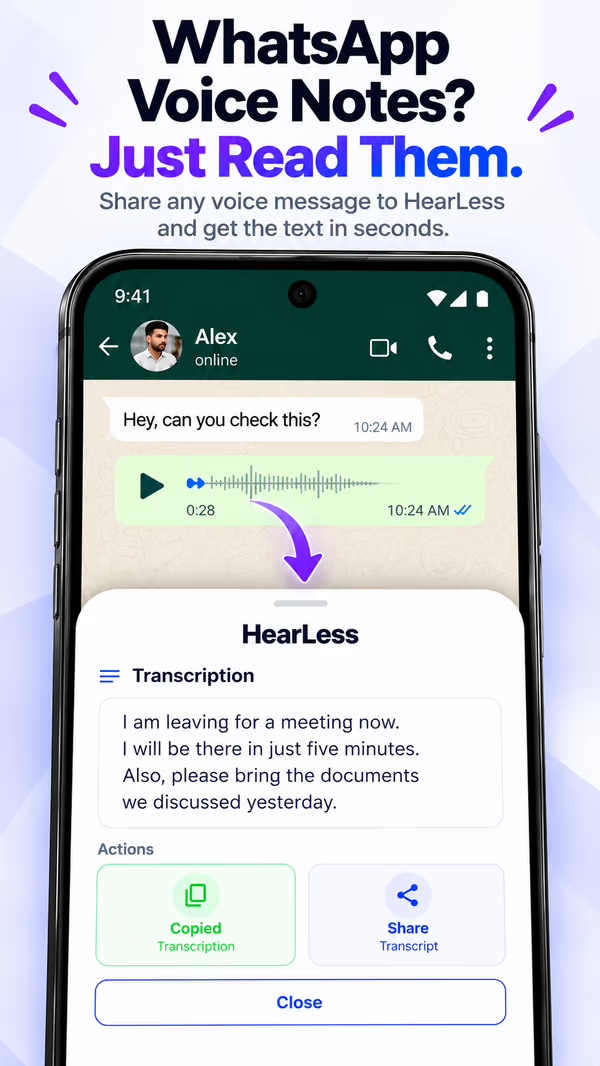
A two-minute voice note lands while you’re in a meeting. You can’t play it out loud, you can’t skim it, and “can you just text me?” never lands well. You just want to read it.
Here are the three real ways to turn a WhatsApp voice note into text on Android in 2026 — honestly compared, so you can pick the one that fits.
Option 1: WhatsApp’s built-in transcripts
WhatsApp added voice message transcripts in late 2024. They run on your device, so the audio stays on your phone, and they’re free.
To turn them on: Settings → Chats → Voice message transcripts, then pick your language. After that, long-press a voice note and tap Transcribe.
The catch is language coverage. On Android, the built-in feature supports only a handful of languages. If yours isn’t on the list — and many widely spoken ones aren’t — you won’t see the option at all.
Option 2: Share the note to a dedicated app
If the built-in feature doesn’t cover your language, or you want extras like Roman-script output, a dedicated app picks up where it stops. The flow is simple:
- In WhatsApp, long-press the voice note.
- Tap Share.
- Choose the app — for example, Hearless.
- Read the transcript, then copy or share it.
With Hearless, the text appears in a sheet on top of WhatsApp in seconds, in 60 languages, and you can read Urdu, Hindi, Punjabi, Arabic, Bengali or Nepali in Roman (Latin) letters. Voice notes are processed by OpenAI via our servers to turn them into text; we don’t store them.
Option 3: Web upload tools
There are browser tools that transcribe an audio file you upload. They work, but you have to export the note out of WhatsApp and upload it first — more steps, and nothing is saved for next time. They can be handy on a laptop, but on a phone the share-to-app route is usually faster. Working at a computer? Here’s how to get a voice note onto your PC or Mac as text without uploading anything.
Which should you use?
- Your language is supported and you only read WhatsApp messages: the built-in feature is the simplest, and it’s free and on-device.
- Your language isn’t supported, or you want Roman script, longer notes, or audio files from your phone: a dedicated app like Hearless does more. See the honest WhatsApp vs Hearless comparison.
- You’re at a laptop: scan the install QR on our home page to set it up on your phone, then follow the desktop workflow.
- You’re on iPhone: here’s how to convert a WhatsApp voice note to text on iPhone.
- Your chats use more than one language: see why WhatsApp transcription breaks with mixed languages.
- You need the whole chat as text: export a WhatsApp chat with the voice notes as text.
- It’s for work (clients, suppliers, team groups, WhatsApp Business): see turning work voice notes into text you can use.
A note on long voice notes
Long recordings are where quick tools fall down. Hearless has no length limit — it handles long notes automatically — so a rambling five-minute message becomes something you can skim in seconds. More in transcribing long WhatsApp voice notes.
Ready to try it? Read how it works or see everything Hearless does.