If WhatsApp’s Transcribe option is not showing, first check Settings → Chats → Voice Message Transcripts. Turn it on if the option is available, finish language setup, then open a voice note you received. On Android, long-press → ⋮ → Transcribe; on iPhone, long-press → Transcribe.
If you see “transcript not available” instead of a missing button, check whether the recording’s language matches your chosen transcript language. A setting cannot add a language or feature that your device does not offer.
| What you see | What to check first |
|---|---|
| No Transcribe option in the message menu | Transcripts enabled, setup complete, supported device and language |
| A Transcribe option, but no usable result | Selected language, recording clarity and time for processing |
| The setting or language is missing entirely | Your WhatsApp version and available platform/language support |
| You want to speak a reply rather than read a received note | That is keyboard dictation, a different feature; see iPhone voice typing. |
The steps below link to WhatsApp’s Help Center. Its published Android list still names English, Portuguese, Spanish and Russian when checked on November 26, 2026; the options on your own updated app may differ during a rollout.
The 60-second checklist
Run through these in order, starting with the platform you use.
- Is the feature on? Settings → Chats → Voice Message Transcripts. It’s off by default. (Fix 1)
- Are you looking in the right menu? On Android it’s ⋮ → Transcribe, not a top-row icon. (Fix 2)
- Is the note in a supported language? On Android, only English, Portuguese, Spanish or Russian. (Fix 3)
- Does your transcript language match the note? You pick one language. (Fix 4)
- On iPhone: iOS 16+ and Siri on? Both are required. (Fix 5)
- Did setup finish? “Wait for Wi-Fi” postpones it. (Fix 6)
- Are you on your phone, not WhatsApp Web? (Fix 7)
- Did someone else send the note? You can’t see transcripts of your own. (Fix 8)
If you got through all eight and still can’t read the note, or the answer to number 3 is “no”, skip to reading it with Hearless.
Why the Transcribe option is so easy to lose
WhatsApp’s transcription is built for privacy: transcripts are generated on your phone. The rules depend on your platform, on your iOS version, and on iPhone even on Siri. The option doesn’t just appear for everyone either. It has to be switched on, set up for one language, and then used on voice notes you received. Each of those steps is a place where it can quietly go missing.
The good news is that every one of those causes takes a few seconds to check.
1. Transcripts are turned off (they are by default)
WhatsApp says voice message transcripts are disabled by default and must be enabled. Until you switch them on, there’s no Transcribe option at all.
Android:
- Open WhatsApp Settings → Chats.
- Turn on Voice Message Transcripts.
- Tap Choose language and pick the language most of your voice notes are in.
- Tap Set up now (or Wait for Wi-Fi).
iPhone:
- Open WhatsApp Settings (or tap your profile picture) → Chats.
- Turn on Voice Message Transcripts.
- Tap Choose language, pick a language, then confirm the change to that language.
2. You’re looking in the wrong place (Android)
On Android, WhatsApp’s steps are: tap and hold the voice message, then tap ⋮ → Transcribe. In other words, the option sits in the three-dot (⋮) menu, so if you’re scanning the icons for it, open the menu instead. Tap the transcript to see more of it. It can take a moment to appear.
On iPhone it’s a direct option: tap and hold the voice message, then tap Transcribe.
3. Your language isn’t supported on your phone
This is the big one, and it’s very different on Android and iPhone. According to WhatsApp’s Help Center (Android, iPhone):
| Platform | Languages WhatsApp can transcribe |
|---|---|
| Android | English, Portuguese, Spanish, Russian |
| iPhone, iOS 16+ | English, Arabic, Chinese, French, German, Italian, Japanese, Korean, Portuguese, Russian, Spanish, Turkish |
| iPhone, iOS 17+ | The iOS 16 list plus Danish, Dutch, Finnish, Hebrew, Malay, Norwegian, Swedish, Thai |
What’s changing (checked 2026-10-23): WhatsApp is testing more Android transcript languages in beta, including German, French, Italian and Japanese (WABetaInfo, 17 Sept 2026). They aren’t on WhatsApp’s official Android list yet, and the rollout is gradual. If your WhatsApp already offers your language, its built-in transcripts are free and on your phone: use them.
So if you’re on Android and your voice notes are in German, French, Italian, Dutch, Arabic, Turkish or anything other than those four languages, check your app’s own language list. If your language is not offered, changing other settings will not add it. There’s more detail in which languages WhatsApp transcription supports, and in the German-on-Android gap in particular.
4. The transcript language doesn’t match the message
You choose one transcript language: the one “most of the voice messages you receive are in”, as WhatsApp puts it. If a friend sends a note in a different language than the one you picked, don’t expect a useful transcript.
Fix: change it in Settings → Chats → Transcript language. There’s a catch WhatsApp mentions: turning transcripts off resets your transcript language. If you toggled the feature off and on, pick your language again.
5. iPhone only: Siri is off, or your iOS is too old
WhatsApp’s iPhone help page is explicit: to see transcripts, your iPhone must run iOS 16 or newer and Siri must be enabled. If Siri wasn’t on when you enabled transcripts, you’ll need to download the selected language while turning the feature on.
Fix: update iOS if you’re below 16, turn on Siri in the iPhone’s Settings, then turn WhatsApp’s voice message transcripts off and on again and choose your language.
6. Setup hasn’t finished yet (Android)
When you enable transcripts on Android, WhatsApp asks whether to Set up now or Wait for Wi-Fi. If you chose to wait, setup finishes later.
Fix: connect to Wi-Fi and give it a moment, or go back to Settings → Chats and choose to set up now.
7. You’re on WhatsApp Web or desktop
WhatsApp’s help page for WhatsApp Web says voice message transcripts are “only available on certain devices and may not be available to you yet”, and recommends keeping WhatsApp updated. In practice, do your transcribing in the WhatsApp app on your phone.
8. It’s a voice note you sent
This one catches people out. WhatsApp shows transcripts to the recipient of a voice message. In WhatsApp’s words, “The sender can’t see the transcripts.” No setting changes that. You can’t transcribe your own outgoing voice notes this way.
Still no Transcribe option? Keep WhatsApp updated
WhatsApp says the feature may not be available on every device yet, and recommends keeping WhatsApp updated so you get it as soon as it is. Update from the Play Store or App Store, then check Settings → Chats again.
When WhatsApp’s feature can’t do it: read the note with Hearless
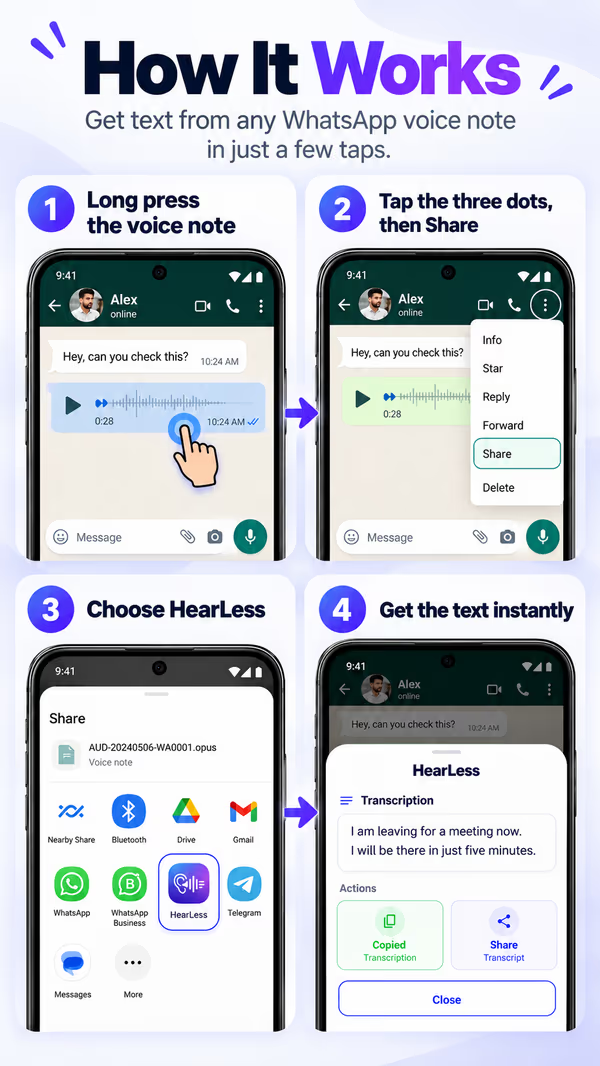
Sometimes the built-in feature simply doesn’t cover you: your language isn’t on the Android list, you need the transcript of a note you sent, or you want to copy the text. WhatsApp says its transcripts can’t be copied, edited or deleted (source). In those cases, share the voice note to an app instead:
- In WhatsApp, long-press the voice note.
- Tap ⋮ → Share (on iPhone: Forward → Share).
- Choose Hearless. Hearless opens the voice-note transcription sheet. On iPhone, return to WhatsApp when you are finished.
- Copy or Share the text.
Hearless transcribes 60 languages plus Auto Detect, and there’s no length cap. For hour-long rambles, see transcribing long WhatsApp voice notes.
To be fair to WhatsApp: its transcripts are free and generated on your device. If your language is supported and you only need to read the note, use them. Hearless works differently: voice notes are processed by OpenAI via our servers, and we don’t store them. It needs an internet connection and a Google sign-in, and after 2 free minutes it uses one-time minute packs. There’s a side-by-side in the sourced WhatsApp vs Hearless comparison.
Sources: WhatsApp Help Center, “How to turn voice message transcripts on or off” (Android, iPhone, Web) and “How to play voice messages” (Android). Last checked 2026-10-11.