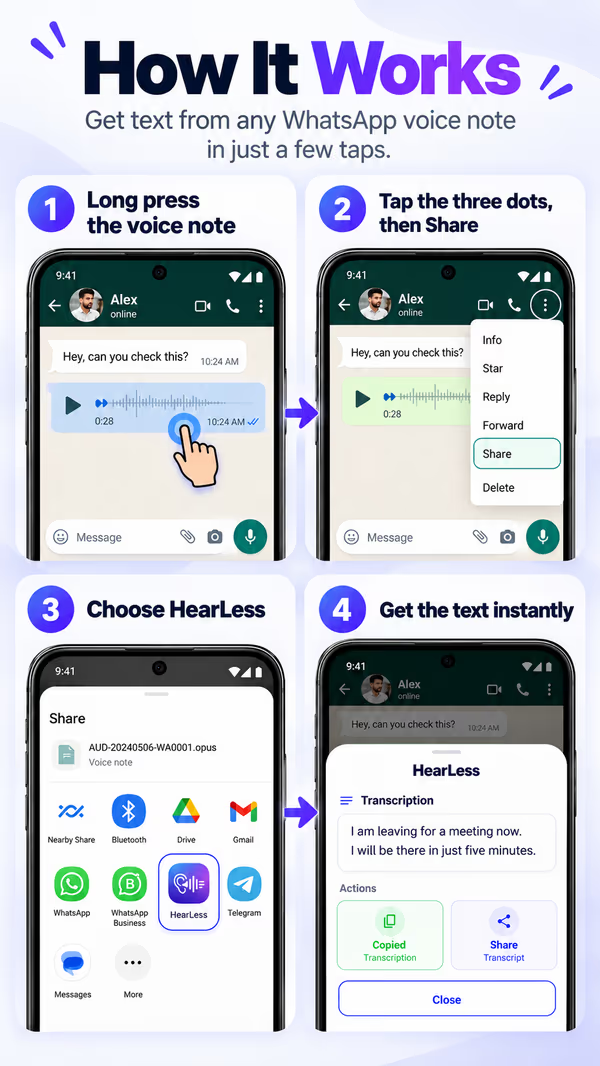
WhatsApp can’t transcribe Arabic voice notes on Android. Its built-in voice message transcripts support only English, Portuguese, Spanish and Russian on Android, according to WhatsApp’s own Help Center. To read an Arabic voice note as text on an Android phone, share it from WhatsApp to a transcription app instead: long-press the note → ⋮ → Share → Hearless. You get the text in seconds, in Arabic script or in Latin letters.
This guide covers why the gap exists, what works on iPhone, and how to read Arabic voice messages on Android, step by step.
Why WhatsApp won’t transcribe Arabic on Android
WhatsApp’s transcripts are generated on your phone, so the languages depend on the platform. Here’s what WhatsApp itself lists (Android, iPhone):
| Phone | Arabic voice message transcripts in WhatsApp? |
|---|---|
| Android | No. Only English, Portuguese, Spanish and Russian |
| iPhone, iOS 16 or newer | Yes. Arabic is on the iPhone list (Siri must be on) |
Worth checking (2026-10-23): WABetaInfo’s report on WhatsApp’s Android beta lists Arabic among the transcript languages (WABetaInfo, 17 Sept 2026), but WhatsApp’s official Android page still doesn’t. Open Settings → Chats → Voice Message Transcripts → Choose language on your phone: if Arabic is there, WhatsApp’s built-in transcripts are free and on-device.
So if a friend on an iPhone tells you “just tap Transcribe”, they’re right for their phone, but the option won’t help you on Android. Switching WhatsApp’s transcript language won’t fix it either: Arabic isn’t in the Android list to choose. There’s a full, dated breakdown in which languages WhatsApp transcription supports.
How to read an Arabic voice note as text on Android
This works in any WhatsApp chat, including WhatsApp Business and group chats.
- Open the chat and long-press the Arabic voice note.
- Tap the ⋮ menu, then Share.
- Choose Hearless in the share sheet.
- A sheet opens on top of WhatsApp and shows the transcript after a few seconds.
- Tap Copy to paste the text anywhere, or Share to send it on.
The first time, Hearless asks you to sign in with Google. If you share a note before signing in, it waits and continues after login.
Pick the language once. Hearless sets a default from your phone’s region the first time you use it. You can choose Arabic directly, or Auto Detect if your voice notes come in more than one language.
Arabic script or Latin letters: your choice
Plenty of people text in Arabic using Latin letters, especially when the chat is half Arabic, half English. Hearless has a Roman-script option for Arabic: the transcript appears in Latin letters, and one tap switches it back to the original Arabic script.
Use whichever you read faster:
- Arabic script when you want to quote, forward or archive the message exactly.
- Latin letters when you’re skimming, or when you’re more used to reading Arabic the way you type it in chats.
Voice notes that mix Arabic and English
Real voice notes rarely stick to one language. Someone starts in Arabic, drops in an English word or a brand name, and switches back. Set the language to Auto Detect and Hearless handles notes that switch between languages. You don’t need to guess which one dominates.
If a transcript comes back worse than expected, try setting Arabic directly instead of Auto Detect. Clear audio helps too: a note recorded in a quiet room transcribes better than one recorded in traffic.
Long Arabic voice notes
Ten-minute voice notes are common in family groups and with suppliers. Hearless has no fixed length limit: long recordings are processed in parts and come back as one transcript. Before anything uploads, it tells you how many minutes the note needs, and you’re charged only for the seconds actually transcribed, after the transcript succeeds. More on that in transcribing long WhatsApp voice notes.
Speaking Arabic instead of typing it
Typing Arabic on a phone keyboard is slow, especially when you switch keyboards mid-message. Hearless also does voice typing in any app: tap the Hearless mic bubble next to a text field, speak, tap ✓, and your words are typed in with filler words removed. Arabic is one of the languages it can type in Latin letters too. See voice typing in any app.
What to know before you start
To be fair to WhatsApp, and clear about Hearless:
- On iPhone, WhatsApp’s own transcripts handle Arabic for free, on your device. If you’re on iOS 16 or newer and only need to read the note, use them.
- Hearless is cloud-based. Voice notes are processed by OpenAI via our servers. We don’t store them. It needs an internet connection; there’s no offline mode.
- Google sign-in is required.
- 2 free minutes on a new account, then one-time minute packs that never expire. No subscription, no ads.
- The app itself is in English. The transcripts are in Arabic (or Latin letters); the buttons and menus are English.
- Your transcript history stays on your phone. It isn’t backed up and doesn’t move to a new phone, so copy anything important.
- One voice note per share. If someone sent several notes, share them one at a time.
There’s a side-by-side, sourced comparison in WhatsApp vs Hearless.
Arabic isn’t the only gap
The same Android limitation hits many other languages that iPhone users can transcribe, including German, French, Italian, Dutch, Japanese, Turkish and Hebrew. If that’s your situation, see the German-on-Android gap or the troubleshooting guide for when WhatsApp’s Transcribe option is missing. Hearless transcribes 60 languages plus Auto Detect.
Sources: WhatsApp Help Center, “How to turn voice message transcripts on or off” (Android, checked 2026-10-16; iPhone, checked 2026-10-11). Hearless features from the app itself.